
Introduction to Serverless Computing
Serverless computing is a cloud computing model where cloud providers manage the infrastructure and dynamically allocate resources as needed, allowing developers to focus solely on writing and deploying code. In traditional computing models, developers are responsible for provisioning and managing servers, which can be time-consuming and resource-intensive.
Key features of serverless computing with AWS Lambda include:
- Event Driven Architecture
- Auto Scaling
- Pay Per Use Pricing
- Managed Services
Serverless Computing With AWS Lambda
AWS Lambda is a serverless compute service provided by Amazon Web Services (AWS) that lets you run code without provisioning or managing servers. AWS created this revolutionary product in 2014.
Want to learn setting up an Application Load Balancer?
Key features of AWS Lambda include:
- Language Support: AWS Lambda supports a variety of programming languages, including Node.js, Python, Java, Go, and .NET Core, allowing developers to choose the language that best suits their needs
- Event Sources: Lambda functions can be triggered by a variety of events, including messages from Amazon SNS or Amazon SQS, updating records in Amazon Dynamo DB tables etc..
- Integration with AWS Services: Lambda integrates seamlessly with other AWS services such as Amazon S3, Amazon Dynamo DB, Amazon Kinesis etc..
- Scalability and High Availability: AWS Lambda automatically scales to handle incoming requests and ensures high availability by running functions across multiple AZ within a region.
- Pay Per Use Pricing: You pay for the number of requests plus the compute time your functions actually use. Billing granularity is 1 ms — AWS moved off the old 100 ms rounding in December 2020, which made short functions materially cheaper.
Step-by-step guide to creating your first Lambda function using the AWS Management Console
- Step 1 : Sign in to the AWS Management Console
- Navigate to the AWS Management Console (https://console.aws.amazon.com/) and sign in with your AWS account credentials.
- Step 2: Open the Lambda Console
- Once signed in, navigate to the “Services” dropdown menu at the top left corner of the console. Under “Compute”, select “Lambda” to open the Lambda console.
- Step 3: Create a Lambda Function
- Click on the “Create function” button in the Lambda console.
- Choose “Author from scratch” as the method to create your function.
- Provide a name for your Lambda function.
- Choose a runtime. AWS Lambda supports several programming languages, such as Node.js, Python, Java, Go, and .NET Core. Select the runtime that matches your code.
- Under “Permissions”, you can optionally choose an existing execution role or create a new role with basic Lambda permissions. This role determines what AWS services your Lambda function can access.
- Click on the “Create function” button to create your Lambda function.
- Click on the “Create function” button in the Lambda console.
- Step 4: Write Your Lambda Function Code
- In the Lambda function editor, you’ll see a default code template for your selected runtime. Replace this code with your own function logic.
- Write the code for your Lambda function. You can include any necessary dependencies or libraries directly in your code, or you can upload them as deployment packages later
- Step 5: Configure Your Lambda Function
- Below the code editor, you’ll find the “Basic settings” section where you can configure the memory, timeout, and other basic settings for your Lambda function. Adjust these settings based on your function’s requirements.
- Optionally, you can configure environment variables, network settings, and other advanced options by clicking on the “Configuration” tab.
- Step 6: Test Your Lambda Function
- Click on the “Test” button in the top right corner of the Lambda console.
- Create a new test event or choose an existing one to simulate an event that triggers your Lambda function.
- Click on the “Test” button to execute your Lambda function with the selected test event.
- Step 7: Monitor Your Lambda Function (Optional)
- AWS Lambda integrates with Amazon CloudWatch for monitoring and logging. You can view logs, metrics, and other monitoring data for your Lambda function in the CloudWatch console.
- Set up alarms and notifications to be alerted of any issues or anomalies with your Lambda function’s performance.
- Step 8: Save and Deploy Your Lambda Function
- Once you’re satisfied with your Lambda function’s configuration and testing, click on the “Save” button to save your changes.
- Click on the “Deploy” button to deploy your Lambda function to the AWS cloud.
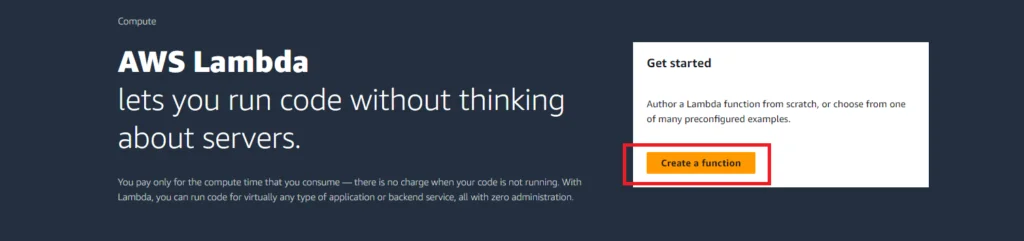
Click on Create Function
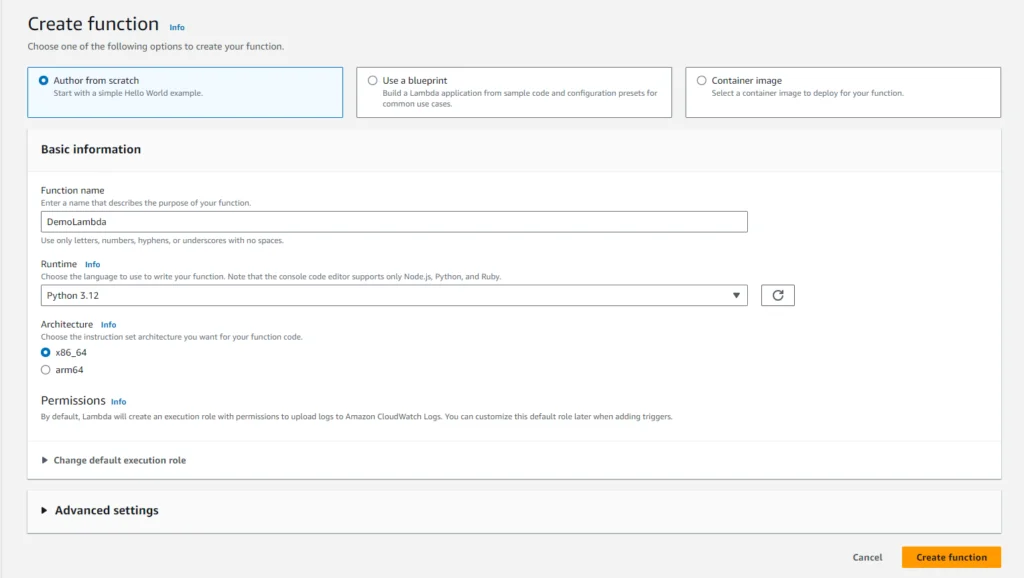
Choose “Author from Scratch”
Provide name for the function
Choose a runtime that matches your code
Click on Create Function Button
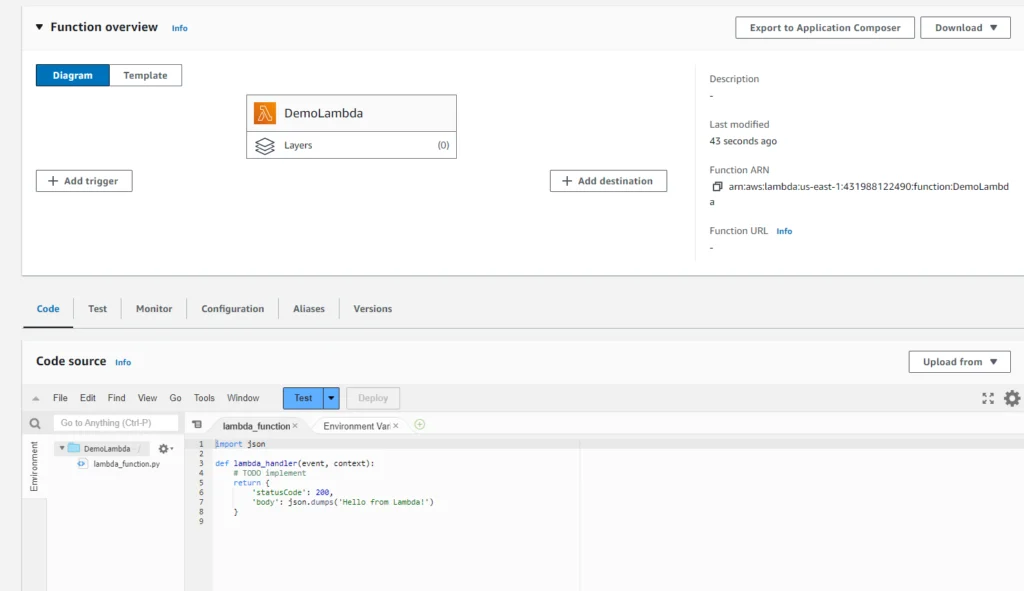
Replace this code with your own function logic.
Add trigger or add dependencies as per your code
Configure your lambda function with memory, timeout, and other basic settings for your Lambda function
Deploy and test the code changes
Monitor the lambda function in cloud watch console
A function worth actually reading
The console walkthrough above gets you a running function, but the default template does not show you much. Here is a small handler that demonstrates the three things every Lambda function deals with: the event that triggered it, the context describing the running invocation, and the response shape the caller expects.
import json
import os

def lambda_handler(event, context):
    # 'event' is whatever the trigger sent. Shape depends entirely on the source:
    # API Gateway, S3 and EventBridge all look completely different.
    name = event.get("name", "world")

    # 'context' describes THIS invocation. remaining time is the useful one -
    # it lets long jobs bail out cleanly instead of being killed mid-write.
    ms_left = context.get_remaining_time_in_millis()

    print(f"request_id={context.aws_request_id} ms_left={ms_left}")

    return {
        "statusCode": 200,
        "body": json.dumps({
            "message": f"Hello, {name}",
            "stage": os.environ.get("STAGE", "dev"),
        }),
    }
Test it from the console with this event payload. The test event is the event argument — there is no other magic to it:
{ "name": "WordWyzz" }Two habits worth forming early. Anything you print() goes to CloudWatch Logs, so logging the request ID makes a specific invocation findable later. And get_remaining_time_in_millis() is how you avoid the worst Lambda failure mode — being terminated halfway through a batch, having already written some of it.
The limits that shape your design
Lambda’s constraints are not arbitrary trivia — each one rules out a category of workload. These are the ones you will actually hit:
| Limit | Value | What it rules out |
|---|---|---|
| Max execution time | 15 minutes | Long batch jobs, big migrations, video transcoding — use Fargate or Batch |
| Memory | 128 MB – 10 GB | Large in-memory datasets. CPU scales with memory, so memory is your speed dial too |
Ephemeral /tmp | 512 MB – 10 GB | Working with files bigger than this without streaming |
| Deployment package | 50 MB zipped / 250 MB unzipped | Heavy ML dependencies — use layers or a container image (10 GB) |
| Synchronous payload | 6 MB each way | Returning large files directly — hand back an S3 pre-signed URL instead |
| Default concurrency | 1,000 per account | Shared across every function in the Region; raise it before a launch, not during |
The memory setting is the one people misunderstand most. It is not just a memory cap — CPU is allocated proportionally. A function given 1,024 MB gets roughly eight times the CPU of one at 128 MB, so raising memory often makes a function cheaper, because it finishes far faster than the price increase.
Cold starts, in plain terms
When no warm execution environment is available, Lambda has to create one: download your package, start the runtime, and run any module-level code before your handler is called. That extra latency is a cold start.
In practice it is tens of milliseconds for a small Python or Node function, and noticeably longer for JVM runtimes or very large packages. It matters for user-facing APIs and rarely matters at all for background processing. Things that genuinely help:
- Initialise once, outside the handler. Database clients and SDK objects created at module level are reused across warm invocations. Creating them inside the handler pays that cost every single time.
- Ship less code. Package size directly affects start time. Import the specific client you need, not an entire SDK.
- Provisioned concurrency keeps environments warm and ready. It removes cold starts and adds a fixed hourly cost — worth it for a latency-sensitive API, wasteful for a nightly job.
- Skip the VPC unless you need it. Attaching a function to a VPC used to add seconds; that is largely fixed now, but a function with no VPC attachment is still the simpler thing to reason about.
When not to use Lambda
Serverless is a good default, not a universal one. Reach for something else when:
- The work runs longer than 15 minutes. A hard ceiling, not a soft one.
- Traffic is steady and high. At constant load, a right-sized EC2 or Fargate task is usually cheaper than per-invocation pricing. Lambda’s economics shine on spiky or idle-heavy workloads.
- You need consistent single-digit-millisecond latency. Cold starts make the tail unpredictable.
- The workload needs persistent connections or local state. Functions are stateless and short-lived; anything you keep in memory can vanish between invocations.
- You are opening many database connections. High concurrency against a traditional relational database exhausts its connection pool fast. RDS Proxy exists precisely because of this.
What it costs
Lambda bills on two axes: a charge per request, and a charge per GB-second of compute (memory allocated × time running, billed in 1 ms increments). The perpetual free tier is generous — one million requests and 400,000 GB-seconds per month — which is why most learning projects cost nothing at all.
The surprises are almost never Lambda itself. They are the things around it: CloudWatch Logs retention set to “never expire” by default, NAT gateway charges if your function sits in a private subnet, and downstream service calls. Set a log retention period on day one. Check the Lambda pricing page for current rates.
Common questions
What does the execution role actually do?
It is the IAM role Lambda assumes while your code runs, and it defines everything the function may touch. The basic role only grants CloudWatch Logs access — the moment your code calls S3 or DynamoDB you must add those permissions explicitly, or you will get an AccessDenied at runtime rather than at deploy time.
Why did my function time out at exactly 3 seconds?
Because 3 seconds is the default timeout, and it catches nearly everyone. Raise it in Basic settings to something realistic for the work — but set it deliberately, since the timeout is also your protection against a hung call billing for the full 15 minutes.
Can I keep files between invocations?
Not reliably. A warm environment may reuse /tmp, so a file can appear to persist — then vanish when a new environment starts. Treat it as scratch space only. Use S3, DynamoDB or EFS for anything that must survive.
What happens if my function throws an error?
It depends on how it was invoked. Synchronous callers get the error back immediately. Asynchronous invocations are retried twice by AWS before the event is discarded — so configure a dead-letter queue or an on-failure destination, otherwise failures disappear silently.
Ready to build something real with this? The next step is wiring a trigger to a function — see generating thumbnails automatically from an S3 upload.
Pingback: Real-Time Amazon S3 Trigger for AWS Lambda Thumbnail Creation Demo - wordwyzz