Most people use Claude like a search engine. They open a chat window, ask a question, and copy the results into an email or document. This manual process takes a lot of time. Instead of using Claude as a simple assistant, you can set it up to complete entire workflows for you. The Co-work feature is designed exactly for this.
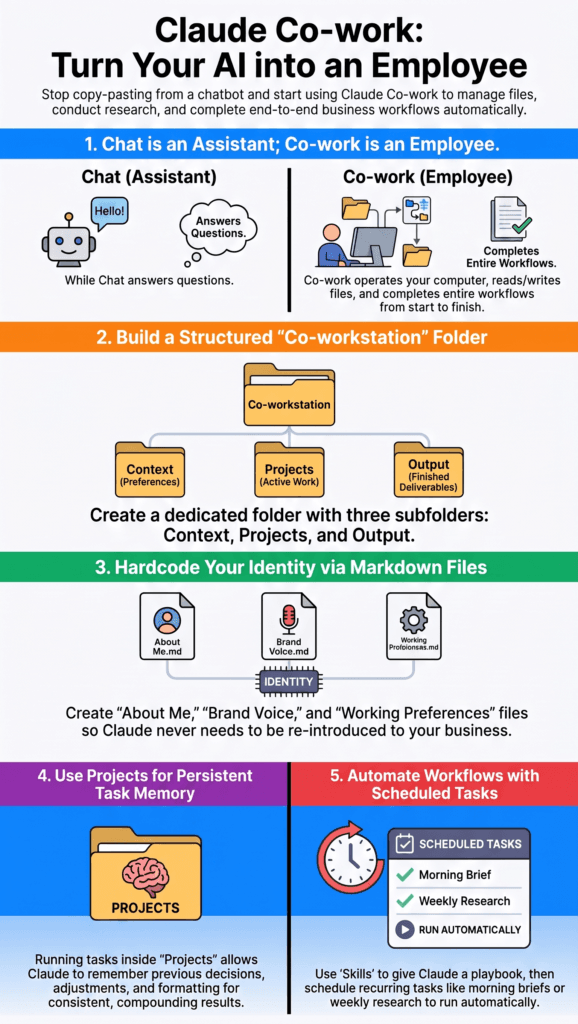
Chat Versus Co-work
The chat window works well for quick questions and brainstorming. Co-work is different because it focuses on completing tasks. When you start a task in Co-work, Claude creates a live plan. It reads your local files, compares information, and writes finished drafts directly to your folders.
The differences are straightforward:
| Chat | Co-work |
|---|---|
| Answers questions | Completes tasks |
| Requires constant copying and pasting | Reads and writes local files |
| Works best for quick conversations | Runs automated workflows |
When you make this change in approach, your daily work becomes much easier.
Set Up an Organized Workspace
If Claude produces generic drafts, the issue is usually a lack of background information. Claude needs to know your goals and preferences to write useful material. Setting up a simple folder structure on your computer helps organize this context.
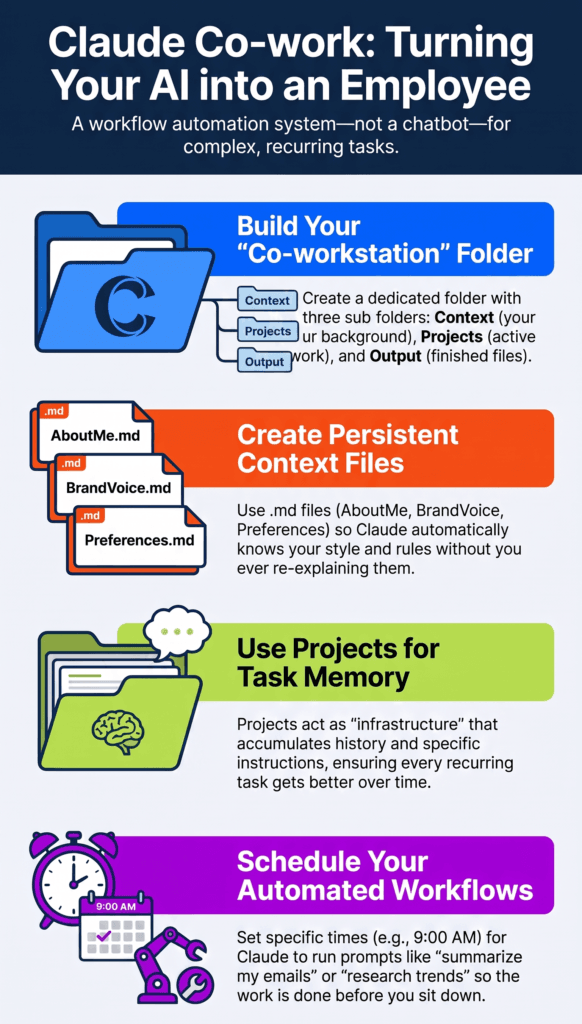
Create a main folder called co-workstation with three subfolders:
context: background information Claude needs to remember.projects: active drafts and notes.output: finished documents.
Inside your context folder, save three text files:
about_me.md: Describe your job, goals, and target audience.voice.md: List your writing preferences and words you do not use.preferences.md: Detail your formatting choices and rules.
Next, open your settings in Claude and add these guidelines to the Global Instructions. Claude will read them before starting any task, saving you from repeating your instructions every time.
Use Projects for Long-Term Memory
Do not create a new project folder for every single task. Keep using the same projects over time. When Claude works inside a single project, it remembers past edits, word choices, and formatting styles. A folder for client work or monthly reports becomes more helpful with every draft because Claude remembers your preferences.
Let Claude Handle Background Tasks
You can save time by scheduling regular tasks instead of starting them yourself. For example, you can connect your calendar, email, and task manager so Claude compiles a daily summary. It can check unread emails, list your meetings, and write a simple briefing in your output folder. You start your day with a finished summary instead of checking multiple apps.
You can also use mobile shortcuts to run these tasks when you are away from your computer. You can start a workflow from your phone and find the finished files in your folder when you get back.
Create Custom Workflows
Custom skills let you save procedures you run frequently. For example, if you plan video topics every week, you can create a skill to analyze popular videos in your field, list their titles and views, find topics with low competition, and check those ideas against your background file. Once you set up this process, you can run it with one click. This works for weekly reports, client proposals, and regular writing tasks.
What Actually Goes in the Context Files
“Describe your job and goals” is easy to say and surprisingly hard to act on, and vague context files are the single biggest reason Co-work still produces generic drafts. What follows are the three files as I actually write them. Specific beats comprehensive every time — a short file full of concrete detail outperforms a long one full of adjectives.
about_me.md
# Who I am
Cloud and AI engineer, 11 years, currently focused on AWS infrastructure.
I write for practitioners, not decision-makers.

# Who I am writing for
Engineers who will open the console and follow along. They already know
what a VPC is. They do not need cloud computing explained.

# What I am trying to do
Publish two technical articles a week that someone could actually
implement from, not skim and forget.

# What I do not want
Generic "top 10 benefits" content. Anything I could have gotten
from the first page of search results.
voice.md
# Voice
Direct. Explain the why before the how. Assume competence.

# Never use
- "Dive into", "unlock", "leverage", "game-changer", "seamless"
- "In today's fast-paced world" or any variation
- Exclamation marks in body copy
- Rhetorical questions as section openers

# Always
- State the limitation alongside the capability
- Give real numbers, not "significantly faster"
- Short paragraphs. Two or three sentences.
preferences.md
# Formatting
- Sentence case for headings, not Title Case
- Code blocks must be copy-pasteable, no placeholder ellipses
- Tables when comparing three or more things, prose otherwise

# Structure
- Lead with the problem, not the definition
- Every tutorial ends with teardown steps and a cost note

# Review rules
- Flag any claim you could not verify rather than softening it
- If a section is padding, say so instead of writing it
That last line earns its place. Telling Claude it is allowed to push back produces noticeably better output than asking it to fill a structure.
A Workflow From Start to Finish
Here is what this looks like in practice, using a weekly report as the example. The point is how little typing is involved once the system exists.
- You write one line: “Draft this week’s client report from the notes in
projects/acme/.” - Claude reads the context folder first — who the client is, your voice, your formatting rules. You did not repeat any of it.
- It reads the week’s notes from the project folder, including the ones you dumped in unedited on Tuesday.
- It writes a plan before writing prose, so you can redirect it before it has produced three pages in the wrong direction.
- It writes the draft to
output/as a finished file, formatted your way. - You edit rather than compose. That is the actual saving — the blank page is gone, and what replaced it already sounds like you.
The first time you run this it will be mediocre. The fifth time, inside the same project, it will be close — because the project now carries the memory of your last four rounds of corrections.
Why the First Week Feels Disappointing
Almost everyone who abandons this does so in week one, for the same handful of reasons:
- The context files are abstract. “Professional but friendly” means nothing. A list of banned words means something.
- A new project folder for every task. This throws away the memory that makes the system improve. Reuse projects relentlessly.
- Accepting the first draft. Corrections are the training signal. Fixing something silently teaches nothing; saying “too formal, and stop opening with a question” updates the whole project.
- Automating something you have never done manually. If you cannot describe the steps yourself, you cannot check the output, and you will not trust it.
- Starting with the highest-stakes task. Begin with the report nobody reads closely, not the client proposal.
What to Keep Out of It
Co-work reads and writes real files on your machine, which is exactly why it is useful and exactly why a few boundaries matter.
- No credentials in context files. No API keys, passwords or tokens — these files get read on every task and are easy to sync or share by accident.
- Point it at a working folder, not your whole drive. Scope is a feature. A dedicated
co-workstationfolder is a boundary, not just tidiness. - Read anything before it leaves. Drafting an email is a workflow. Sending it unread is a different risk category entirely.
- Check facts and figures. It will happily produce a confident number in your voice. Your voice is not evidence.
- Keep the output folder under version control or at least backed up, once real work depends on it.
Focus on Your System
You do not need to learn complex prompting formulas. Instead, build a simple system with three parts: an organized workspace for background information, long-term projects that build memory, and scheduled tasks for recurring work.
This setup changes how you use Claude. You let it complete tasks in the background while you focus on the results. What is the first repetitive, three-hour task on your calendar that you want to automate today?
Pingback: The Prompt Is Dead: Why Building Claude Skills Is the Real Power Move in 2026 - WordWyzz